Tag: linux

  • Installing Homebrew on Linux Mint and Ubuntu systems

    Homebrew is a command line utility that makes installing software easier because it does a good job of installing any dependencies for you. Unfortunately, users sometimes run into trouble while installing Homebrew. Here, I show you how to perform the “default” installation that Homebrew recommends on the home page of its website.

    Open Terminal and confirm that Homebrew is not installed by running the brew --version command. If it isn’t installed, the output returns Command 'brew' not found. For example.

    username@laptop:~$ brew --version
    
    Command 'brew' not found.

    Visit the Homebrew website, https://brew.sh/, and copy the installation command by clicking the copy icon:
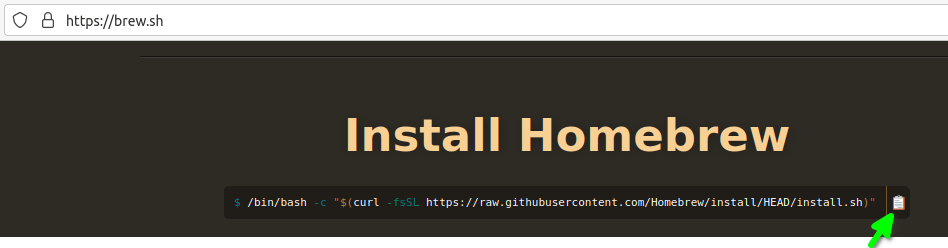
    In Terminal, paste the command by pressing the Ctrl+Shift+V keys at the same time. Then, press Enter to run the command.

    $ /bin/bash -c "$(curl -fsSL https://raw.githubusercontent.com/Homebrew/install/HEAD/install.sh)"
    
    You must install Git before installing Homebrew. See:
      https://docs.brew.sh/Installation
    
    username@laptop:~$ git
    
    Command 'git' not found, but can be installed with:
    
    sudo apt install git

    If your system doesn’t have git, the output prompts you to install it. So you do that.

    $ sudo apt install git
    [sudo] password for username:        
    Reading package lists... Done
    Building dependency tree       
    [...]
    Processing triggers for man-db (2.9.1-1) ...

    Note: Whenever prompted, enter y to continue the installation process.

    Note: I use [...] to indicate that I’ve omitted many lines of output.

    Rerun the command that installs Homebrew. You can get the command back by pressing the up arrow key a couple of times until the command reappears.

    $ /bin/bash -c "$(curl -fsSL https://raw.githubusercontent.com/Homebrew/install/HEAD/install.sh)"
    [...]

    This automated installation process can take several minutes. When it finishes, the installer suggests “next steps” for you to complete the installation:

    [...]
    ==> Next steps:
    - Run these two commands in your terminal to add Homebrew to your PATH:
        echo 'eval "$(/home/linuxbrew/.linuxbrew/bin/brew shellenv)"' >> /home/<username>/.profile
        eval "$(/home/linuxbrew/.linuxbrew/bin/brew shellenv)"
    - Install Homebrew's dependencies if you have sudo access:
        sudo apt-get install build-essential
      For more information, see:
        https://docs.brew.sh/Homebrew-on-Linux
    - We recommend that you install GCC:
        brew install gcc
    - Run brew help to get started
    - Further documentation:
        https://docs.brew.sh

    Copy/paste these next steps to a file in a text editor so that you can paste and run the commands one at a time.

    As noted in the “Next steps,” add Homebrew to your PATH:

    $ echo 'eval "$(/home/linuxbrew/.linuxbrew/bin/brew shellenv)"' >> /home/<username>/.profile
    
    $ eval "$(/home/linuxbrew/.linuxbrew/bin/brew shellenv)"

    As noted in the “Next steps,” if you have sudo access, install Homebrew’s dependencies:

    $ sudo apt-get install build-essential
    [sudo] password for <username>:        
    Reading package lists... Done
    [...]

    Reload your terminal by closing and reopening the Terminal or by entering:

    $ bash --login.

    As noted in the “Next steps,” install the gcc compiler, which brew often uses:

    $ brew install gcc
    [...]

    If the preceding brew command produces a Command 'brew' not found message, reboot your Linux system and try it again.

    Congratulations! Using brew to install gcc or any other software verifies that brew is correctly installed and works!

  • Command ‘brew’ not found

    Command ‘brew’ not found

    Let me guess: you just installed Homebrew on your Linux system because you were going to use it to install some other software. Instead, when you tried to install the software, you got something like this:

    $ brew install <software-name>
    Command 'brew' not found

    This response means the command can’t find the brew application binary. This happened because the Homebrew installation omits an essential step: adding the path of the brew binary to the Linux $PATH variable.

    To fix this, you must add an instruction to your ~/.profile or ~/.bashrc configuration file that adds the path of the brew binary to the Linux $PATH variable.

    So, what is the path of the brew binary?

    Earlier, when you installed Homebrew, the output showed the location of the brew binary. Optional: Scroll up through your command history to see if it is still visible. For example:

    $ /bin/bash -c "$(curl -fsSL https://raw.githubusercontent.com/Homebrew/install/HEAD/install.sh)"
    ==> Checking for `sudo` access (which may request your password).
    ==> This script will install:
    /home/linuxbrew/.linuxbrew/bin/brew
    /home/linuxbrew/.linuxbrew/share/doc/homebrew
    /home/linuxbrew/.linuxbrew/share/man/man1/brew.1
    /home/linuxbrew/.linuxbrew/share/zsh/site-functions/_brew
    /home/linuxbrew/.linuxbrew/etc/bash_completion.d/brew
    /home/linuxbrew/.linuxbrew/Homebrew
    
    Press RETURN to continue or any other key to abort
    

    If you have root privileges, brew installed to /home/linuxbrew/.linuxbrew/bin/brew. Otherwise, if you don’t have root privileges, it installed to ~/.linuxbrew/bin/brew.

    In any case, the following commands (which I found slightly buried in the Homebrew documentation) will sort this out. They find which path has the brew binary and adds it to your .profile configuration file. Paste the following commands in your terminal.

    test -d ~/.linuxbrew && eval $(~/.linuxbrew/bin/brew shellenv)
    test -d /home/linuxbrew/.linuxbrew && eval $(/home/linuxbrew/.linuxbrew/bin/brew shellenv)
    test -r ~/.bash_profile && echo "eval \$($(brew --prefix)/bin/brew shellenv)" >>~/.bash_profile
    echo "eval \$($(brew --prefix)/bin/brew shellenv)" >>~/.profile
    

    After this, restart your terminal. When you do this, .profile adds the path to your system’s $PATH variable.

    Now, verify that the brew command works by using it to install some software. Please let me know how this works for you. If not, I’ll try adding some troubleshooting steps.

    Now…why was I installing Homebrew? Ah yes, I installed it so I could install the GitHub CLI:

    rolfedh@rolfedh-HP-Z2-Mini-G3-Workstation:~$ brew install gh
    ==> Homebrew is run entirely by unpaid volunteers. Please consider donating:
      https://github.com/Homebrew/brew#donations
    ==> Auto-updated Homebrew!
    Updated 1 tap (homebrew/core).
    ==> Updated Formulae
    Updated 48 formulae.
    Updating Homebrew...
    
    ==> Downloading https://ghcr.io/v2/linuxbrew/core/gh/manifests/2.0.0
    ######################################################################## 100.0%
    ==> Downloading https://ghcr.io/v2/linuxbrew/core/gh/blobs/sha256:ac34664fe701dc
    ==> Downloading from https://pkg-containers.githubusercontent.com/ghcr1/blobs/sh
    ######################################################################## 100.0%
    ==> Pouring gh--2.0.0.x86_64_linux.bottle.tar.gz
    ==> Caveats
    Bash completion has been installed to:
      /home/linuxbrew/.linuxbrew/etc/bash_completion.d
    ==> Summary
    🍺  /home/linuxbrew/.linuxbrew/Cellar/gh/2.0.0: 97 files, 27.8MB
    rolfedh@rolfedh-HP-Z2-Mini-G3-Workstation:~$